
Blog

Enhancing software analysis with Moose's aggregation

As software systems grow more complex, importing large models into Moose using the conventional process can cause issues with speed, excessive memory usage, and overall performance due to the vast amount of data. To ensure a smoother analysis process, managing the importation of extensive models efficiently is crucial. To overcome these challenges, strategic filtering and aggregation have emerged as powerful techniques.
Filtering entities: limits and approach
Section titled “Filtering entities: limits and approach”One feature of Moose is its model import filtering, which provides a practical approach to effectively handle large models. It allows us to selectively choose relevant entities for analysis instead of importing the entire model.
However, filtering has its limitations. By excluding certain entities during importation, we may lose some fine-grained details that could potentially be relevant for certain analyses. Moreover, if our filtering criteria are too aggressive, we might overlook important dependencies that could impact the overall understanding of the software system. To address these limitations, we have adopted a specific approach in this context - not importing methods.
Simplifying the model by not importing methods
Section titled “Simplifying the model by not importing methods”let’s take a look at a real-life example - a massive software model with over 130,000 methods!
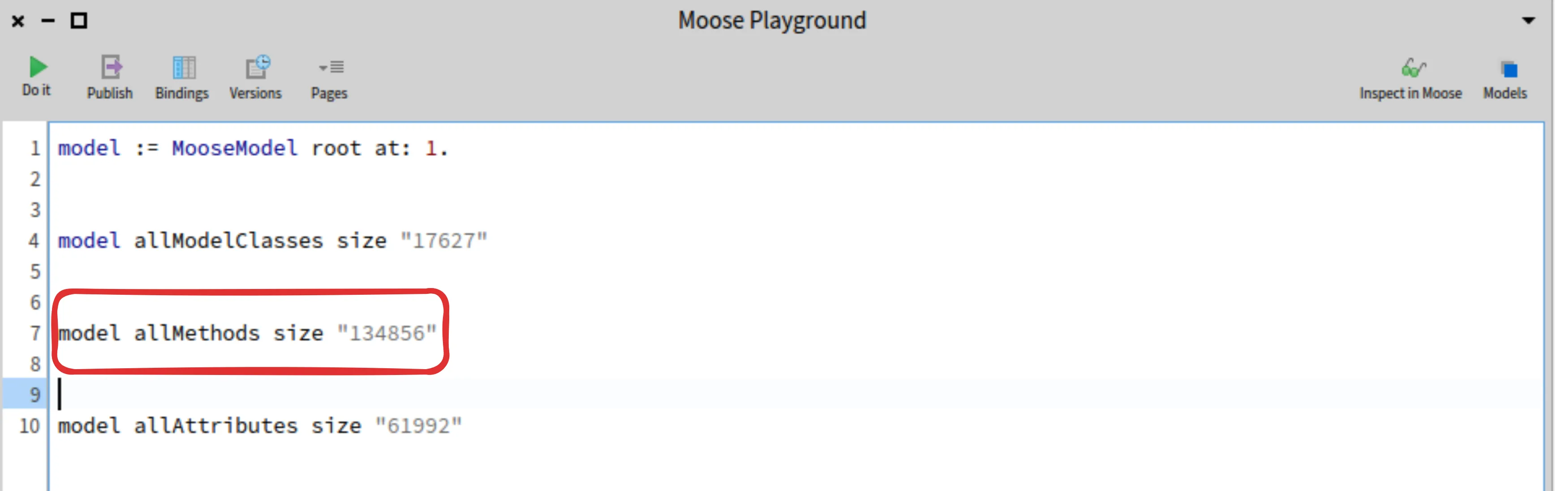
While method-related information can be crucial for certain analysis tasks, focusing on high-level relationships between classes is often more important than diving into individual method implementations. By avoiding the importation of individual methods, we strike a balance between capturing essential dependency information and simplifying the model.
But how do we preserve crucial dependency information when we’re not importing methods? This is where aggregation comes into play.
Aggregation: an approach to capture dependencies
Section titled “Aggregation: an approach to capture dependencies”Aggregation involves creating an aggregated method within each class, serving as a central repository for consolidating dependencies. This approach reduces the need for complex connections between individual methods, leading to improved performance and overall efficiency. The abstraction layer introduced by aggregated methods not only simplifies the model but also enhances its modularity. By adopting this approach, we promote cleaner code design, making the software more maintainable and adaptable.
Now, let’s explore the process of importing a software model into Moose using the aggregator approach.
Importing a model in Moose with the aggregator
Section titled “Importing a model in Moose with the aggregator”To import an aggregated model into Moose:
- Open Moose’s model browser.
- Locate the model file on your computer.
- Click “Aggregate Methods.”
- Click “Import.”
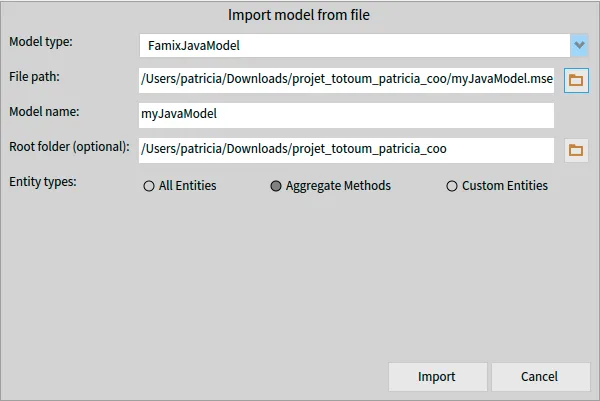
Now, the aggregated model is available for analysis in Moose.
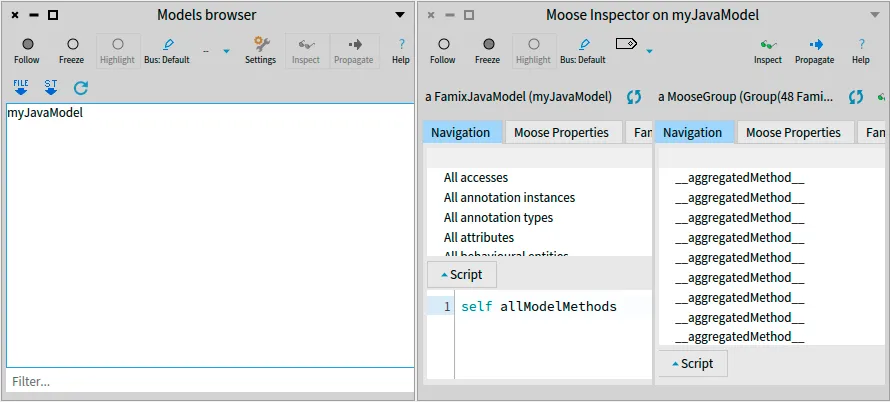
Benchmarking aggregation’s impact on model size and analysis
Section titled “Benchmarking aggregation’s impact on model size and analysis”To assess the effectiveness of aggregation in reducing model complexity, we conducted a benchmark using a real-life example. The original software model had a staggering 10,267 methods.
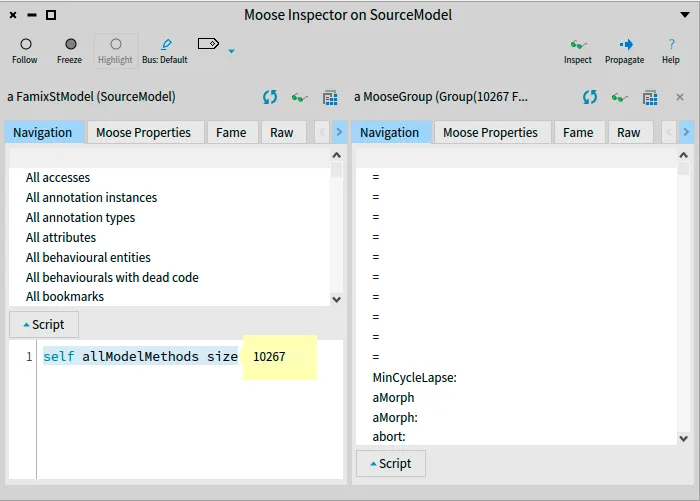
After importing the model into Moose using the aggregation approach, the corresponding aggregated model had only 448 methods. This showcases a substantial reduction in complexity achieved through aggregation.
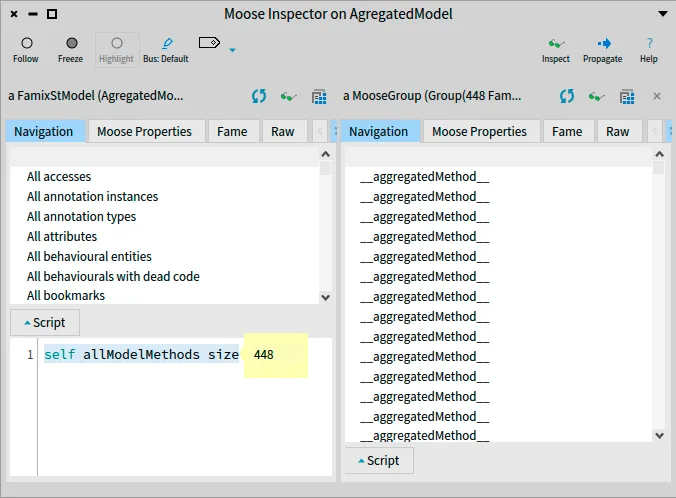
In proportion, the aggregated model represents just 4.4% of the original model’s size (448 / 10,267 * 100). This remarkable decrease in the number of methods demonstrates the powerful impact of aggregation in simplifying the model.
Our benchmark confirms that aggregation is an invaluable technique for managing large models in Moose. It significantly streamlines the analysis process while preserving essential dependency information. Aggregation empowers software engineers to work with large-scale systems more efficiently and promotes cleaner code design, making the software more maintainable and adaptable.
Conclusion
Section titled “Conclusion”In summary, aggregation proved to be a highly effective approach for managing large models in Moose. By adopting aggregation, software engineers can work more efficiently with complex systems.
Representation of parametrics

Note that this blog post is rendered obsolete by the new Parametrics next generation blog post.
Introduction
Section titled “Introduction”In Java generic types allow you to write a general, generic class (or method) that works with different types, allowing code reuse.
But their modeling and how it works can be difficult to understand. Let’s take an example.
Generic class
Section titled “Generic class”public class ClassA<T>Here, ClassA is a generic class because there is one generic type T.
One can not use ClassA without specifying the generic type.
ClassA<Integer> class1 = new ClassA<Integer>;ClassA<String> class2 = new ClassA<String>;class1 and class2 are variables of type ClassA, but this time ClassA doesn’t have a generic type but String or Integer.
So, how do we represent all that?

We have 5 new traits in our meta-model :
TParametricEntityis used by all parametric entities. It can be aParametricClass,ParametricMethod, andParametricInterface.TConcretisationallows one to have a link between twoTParametricEntity. ATParametricEntitycan have one or more concretizations with otherTParametricEntity. EachTParametricEntitythat is a concretization of anotherTParametricEntityhas a genericEntity.TConcreteParameterTypefor concrete parameters.TGenericParameterTypefor generic parameters.TParameterConcretisationis the same asTConcretisationbut instead of twoTParametricEntityit hasTConcreteParameterandTGenericParameterType.TGenericParameterTypecan have one or more concretisations andTConcreteParameterTypehas generics.
A TParametricEntity knows its concrete and generic parameters.
ParameterType uses the TWithInheritance trait because in Java we can do the following: <T extends Object> and <? super Number>.
For the first, it means that T can be all subclasses of Object and for the second, it means Number and all its superclasses or interfaces (Number, Object, Serializable).
ParameterType also uses the TThrowable trait because we can have a genericException so ParameterType should be considered like it.
public interface GenericThrower<T extends Throwable> { public void doThrow() throws T;}Let’s describe an example
Section titled “Let’s describe an example”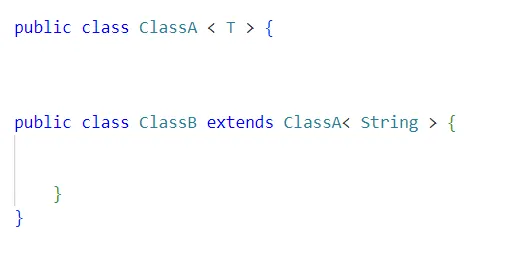
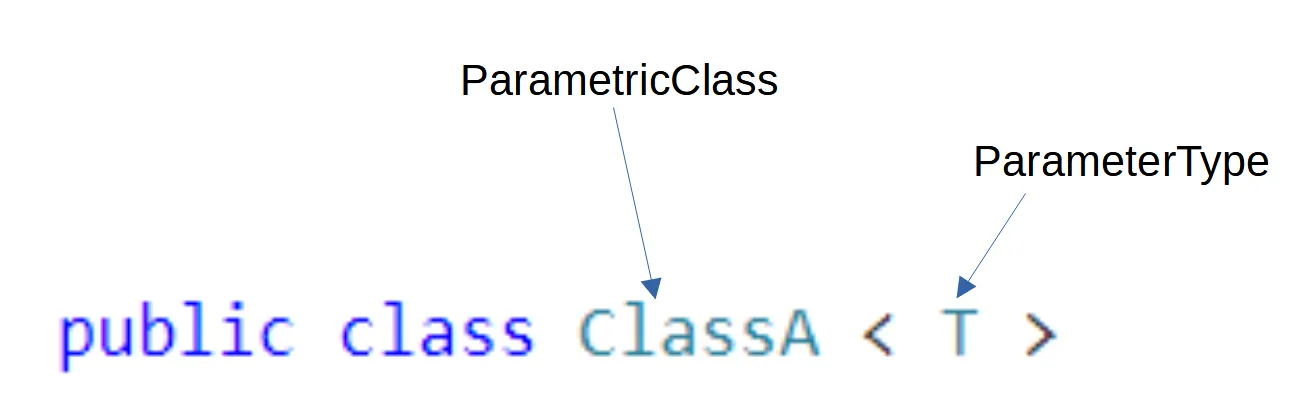
If we take the first class. We have a ParametricClass with one ParameterType name T.
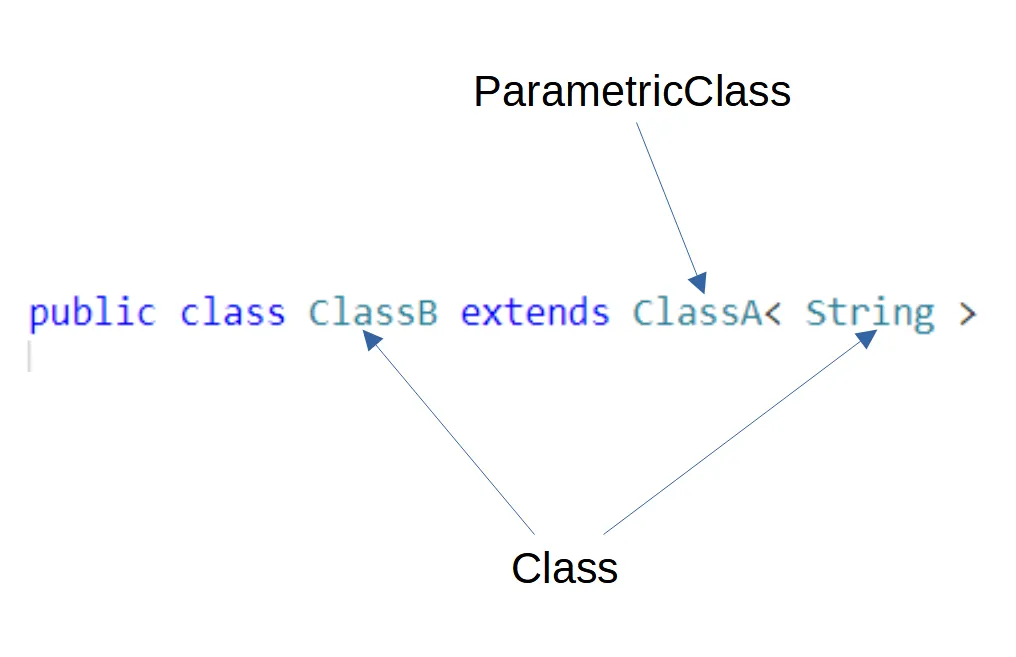
For the second class, we have a class that extends a parametric class with one parameter named String.
String here is a class.
It is not a ParameterType anymore.
So, what is the link between the two parametric classes and the parameters T and String?
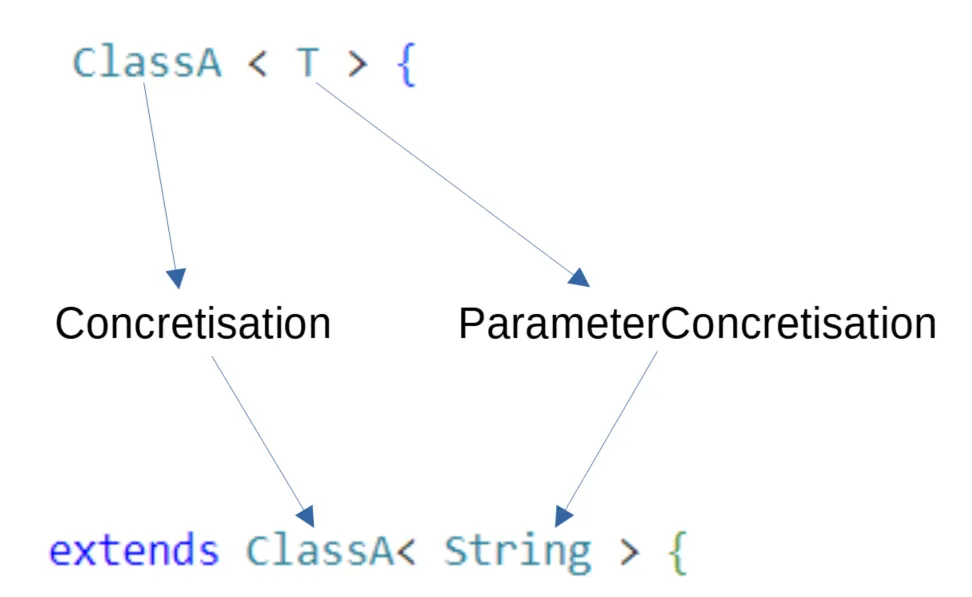
We have here a Concretisation.
ClassA with the parameter T has one concretization and the parameter T has one parameter Concretisation which is String.
If we take back our first example:
public class ClassA<T>ClassA<Integer> class1 = new ClassA<Integer>ClassA<String> class2 = new ClassA<String>We have three ParametricClass, one ParameterType and two types (String and Integer).
T is our ParameterType and has two ParameterConcretisations: String and Integer.
We can say that T is generic and String and Integer are concrete because we know what they are: classes.
ClassA with the ParameterType T (ClassA<T>) also has two concretizations.
These are ClassA<Integer> and ClassA<String>.
The three different classA know their parameters. T is in genericParameters. String and Integer are in concreteParameters.
A class is generic if it has at least one ParameterType.
We can have concretization of a parametric class that is also generic. See the example below:
public class ParametricClass<T, V, K, Z>
public class ParametricClass2<Z> extends ParametricClass<String, Integer, Integer, Z>
The second ParametricClass has one ParameterType, so the class is generic. The four parameters (T, V, K, Z) have each a concretization (String, Integer, Integer, Z). Even if Z is still a ParameterType.
ParametricClass2 has for superclass ParametricClass, which has for generic entity ParametricClass with 4 ParameterTypes.
Generic method
Section titled “Generic method”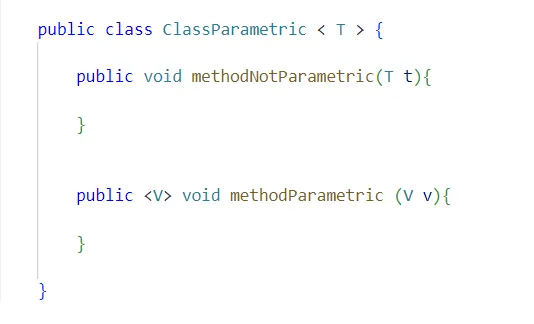
Let’s see what we have here. First of all, we recognize a ParametricClass with one ParameterType. This class has two methods. One is a regular method and the second is a parametricMethod. The first one isn’t generic because when the class is concretized, the ParameterType T will become String, Integer, Animals… and it will be the same for the method. The parameter of the first method depends on the class and this is not the case for the second method. That is why the second method is generic, not the first one.
Example with Pharo
Section titled “Example with Pharo”public classA<T>public classB extends classA<String>This is how we can represent this in Pharo.
classAgen := FamixJavaParametricClass named:'ClassA'.t := FamixJavaParameterType named:'T'.classAgen addGenericParameter: t.
classAcon := FamixJavaParametricClass named:'ClassA'.string := FamixJavaClass named:'String'.classAgen addConcreteParameter: string.
FamixJavaConcretisation new concreteEntity: classAcon ; genericEntity: classAgen.
FamixJavaParameterConcretisation new concreteParameter: string ; genericParameter: t.
classB := FamixJavaClass named:'ClassB'.FamixJavaInheritance new subclass: classB ; superclass: classAcon .
Conclusion
Section titled “Conclusion”In this post, we have seen how generics types are modeled with VerveineJ and Moose for code analysis.
Test your Moose code using CIs
You have to test your code!
I mean, really.
But sometimes, testing is hard, because you do not know how to start (often because it was hard to start with TDD or better XtremTDD 😄).
One challenging situation is the creation of mocks to represent real cases and use them as test resources. This situation is common when dealing with code modeling and meta-modeling.
Writing a model manually to test features on it is hard. Today, I’ll show you how to use GitHub Actions as well as GitLab CI to create tests for the Moose platform based on real resources.
First of all, let’s describe a simple process when working on modeling and meta-modeling.
When analyzing a software system using MDE, everything starts with parsing the source code of the application to produce a model. This model can then be stored in a file. Then, we import the file into our analysis environment, and we use the concrete model.
All these steps are performed before using the model.
However, when we create tests for the Use step, we do not perform all the steps before.
We likely just create a mock model.
Even if this situation is acceptable, it is troublesome because it disconnects the test from the tools (which can have bugs) that create the model.
One solution is thus not to create a mock model, but to create mock source code files.
Proposed approach
Section titled “Proposed approach”Using mock source code files, we can reproduce the process for each test (or better, a group of tests 😉)
In the following, I describe the implementation and set-up of the approach for analyzing Java code, using Pharo with Moose. It consists of the following steps:
- Create mock resources
- Create a bridge from your Pharo image to your resources using PharoBridge
- Create a GitLab CI or a GitHub Action
- Test ❤️
Create mock resources
Section titled “Create mock resources”The first step is to create mock resources. To do so, the easiest way is to include them in your git repository.
You should have the following:
> ci // Code executed by the CI> src // Source code files> tests // Tests ressourcesInside the tests folder, it is possible to add several subfolders for different test resources.
Create a Pharo Bridge
Section titled “Create a Pharo Bridge”To easily use the folder of the test resource repository from Pharo, we will use the GitBridge project.
The project can be added to your Pharo Baseline with the following code fragment:
spec baseline: 'GitBridge' with: [ spec repository: 'github://jecisc/GitBridge:v1.x.x/src' ].Then, to connect our Pharo project to the test resources, we create a class in one of our packages, a subclass of `GitBridge“.
A full example would be as follows:
Class {    #name : #MyBridge,    #superclass : #GitBridge,    #category : #'MyPackage-Bridge'}
{ #category : #initialization }MyBridge class >> initialize [
    SessionManager default registerSystemClassNamed: self name]
{ #category : #'accessing' }MyBridge class >> testsResources [    ^ self root / 'tests']
The method testsResources can then be used to access the local folder with the test resources.
Warning: this setup only works locally. To use it with GitHub and GitLab, we first have to set up our CI files.
Set up CI files
Section titled “Set up CI files”To set up our CI files, we first create in the ci folder of our repository a pretesting.st file that will execute Pharo code.
(IceRepositoryCreator new location: '.' asFileReference; subdirectory: 'src'; createRepository) registerThis code will be run by the CI and register the Pharo project inside the Iceberg tool of Pharo. This registration is then used by GitBridge to retrieve the location of the test resources folder.
Then, we have to update the .smalltalk.ston file (used by every Smalltalk CI process) and add a reference to our pretesting.st file.
SmalltalkCISpec { #preTesting : SCICustomScript { #path : 'ci/pretesting.st' } ...}Set up GitLab CI
Section titled “Set up GitLab CI”The last step for GitLab is the creation of the .gitlab-ci.yml file.
This CI can include several steps. We now present the steps dedicated to testing the Java model, but the same steps apply to other programming languages.
First, we have to parse the tests-resources using the docker version of VerveineJ
stages:  - parse  - tests
parse:  stage: parse  image:    name: badetitou/verveinej:v3.0.0    entrypoint: [""]  needs:    - job: install      artifacts: true  script:    - /VerveineJ-3.0.0/verveinej.sh -Xmx8g -Xms8g -- -format json -o output.json -alllocals -anchor assoc -autocp ./tests/lib ./tests/src  artifacts:    paths:      - output.json
The parse stage uses the v3 of VerveineJ, parses the code, and produces an output.json file including the produced model.
Then, we add the common tests stage of Smalltalk ci.
tests: stage: tests image: hpiswa/smalltalkci needs: - job: parse artifacts: true script: - smalltalkci -s "Moose64-10"This stage creates a new Moose64-10 image and performs the CI based on the .smalltalk.ston configuration file.
Setup GitHub CI
Section titled “Setup GitHub CI”The last step for GitLab is the creation of the .github/workflows/test.yml file.
In addition to a common smalltalk-ci workflow, we have to configure differently the checkout step, and add a step that parses the code.
For the checkout step, GitBridge (and more specifically Iceberg) needs the history of commits. Thus, we need to configure the checkout actions to fetch the all history.
- uses: actions/checkout@v3 with: fetch-depth: '0'Then, we can add a step that runs VerveineJ using its docker version.
- uses: addnab/docker-run-action@v3 with: registry: hub.docker.io image: badetitou/verveinej:v3.0.0 options: -v ${{ github.workspace }}:/src run: | cd tests /VerveineJ-3.0.0/verveinej.sh -format json -o output.json -alllocals -anchor assoc . cd ..Note that before running VerveineJ, we change the working directory to the tests folder to better deal with source anchors of Moose.
You can find a full example in the FamixJavaModelUpdater repository
The last step is to adapt your tests to use the model produced from the mock source. To do so, it is possible to remove the creation of the mock model by loading the model.
Here’s an example:
externalFamixClass := FamixJavaClass new name: 'ExternalFamixJavaClass'; yourself.externalFamixMethod := FamixJavaMethod new name: 'externalFamixJavaMethod'; yourself.externalFamixClass addMethod: externalFamixMethod.myClass := FamixJavaClass new name: 'MyClass'; yourself.externalFamixMethod declaredType: myClass.famixModel addAll: { externalFamixClass. externalFamixMethod. myClass }.The above can be converted into the following:
FJMUBridge testsResources / 'output.json' readStreamDo: [ :stream |    famixModel importFromJSONStream: stream ].famixModel rootFolder: FJMUBridge testsResources pathString.
externalFamixClass := famixModel allModelClasses detect: [ :c | c name = 'ExternalFamixJavaClass' ].myClass := famixModel allModelClasses detect: [ :c | c name = 'MyClass' ].externalFamixMethod := famixModel allModelMethods detect: [ :c | c name = 'externalFamixJavaMethod' ].
Congrats
Section titled “Congrats”You can now test your code on a model generated as a real-world model!
It is clear that this solution slows down tests performance, however. But it ensures that your mock model is well created, because it is created by the parser tool (importer).
A good test practice is thus a mix of both solutions, classic tests in the analysis code, and full scenario tests based on real resources.
Have fun testing your code now!
Thanks C. Fuhrman for the typos fixes. 🍌
Manage rules using MooseCritics

Software projects often leave specific architectural or programming rules that are not checked by the off-the-shelf static analysis tools and linters.
But MooseCritics is now here to make such things easy!
Setting up for rule making
Section titled “Setting up for rule making”The first step to use this tool is of course to open its browser, findable in the Moose menu under the name Moose Critic Browser. As with every other tool of MooseIDE, we also need to propagate a model to give our tool entities to analyze. For this analysis, we will use a model of ArgoUML, an open-source Java project used in this wiki.
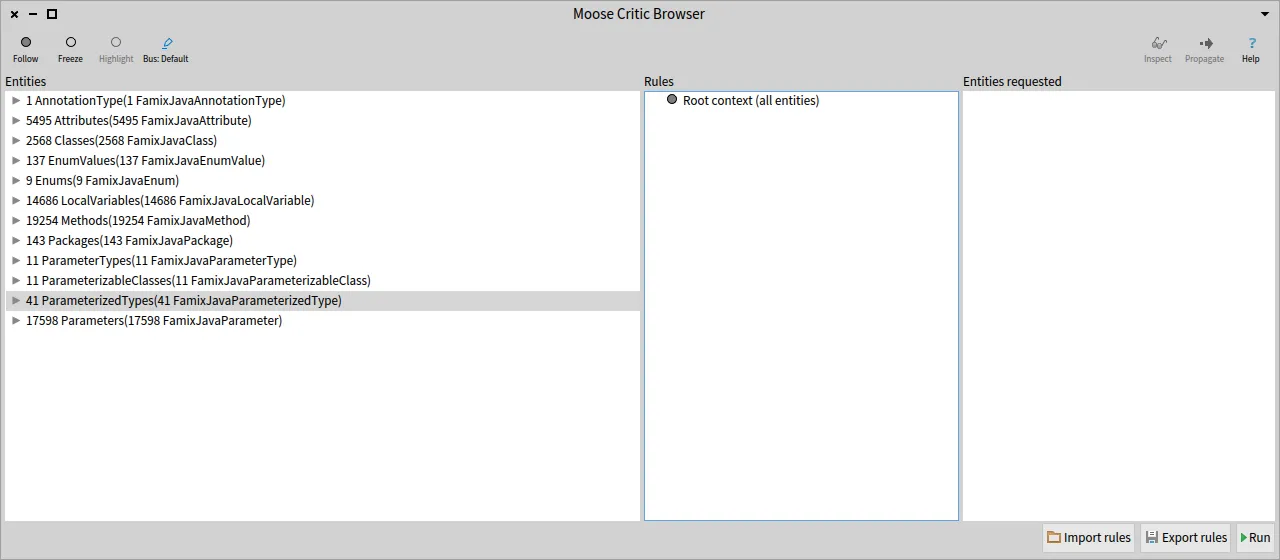
Rules and how to write them
Section titled “Rules and how to write them”Rules in MooseCritics are divided into two components: Context, and Condition.
A context is a collection of entities to specify the scope of our analysis. Using this, we are only executing our rules on the relevant entities for them.
Once we have a context, we add conditions to it, to verify the validity of every entity belonging to this context.
Let’s start building a few of those, to appreciate how easy and versatile this system can be!
Contexts
Section titled “Contexts”To begin, we will right-click on the root context, the root of our rules, doing nothing but passing the whole set of entities propagated into our browser. Then, clicking on “Add Context” will open a new window, in which we can write our first context.
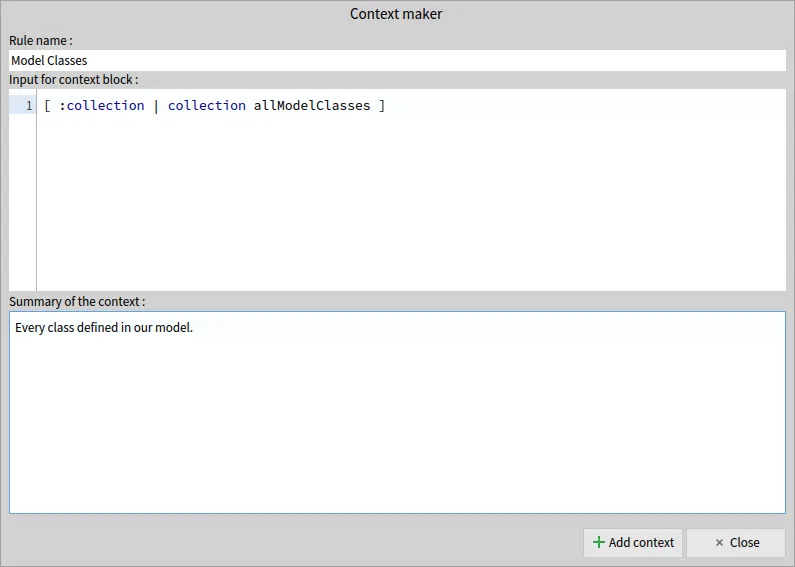
As you can see, a context has three properties :
- Name: the name of our context
- Context Block: a code block, using as a parameter the collection given by the parent context, and that must return a collection of entities
- Summary: a quick explanation of the selection performed
In this case, the selection is very basic (keeping only the classes defined within our model), but any way of manipulating a collection (so long as it remains a collection) can be used to make a very specific choice of entities.
But for now, let’s keep things simple, and add a few more contexts to our root.
First, we select methods…
"Title:" 'Methods'"Context Block:" [ :collection | collection allMethods ]"Summary:" 'Every method in our model or called by a model entity.'… and secondly attributes.
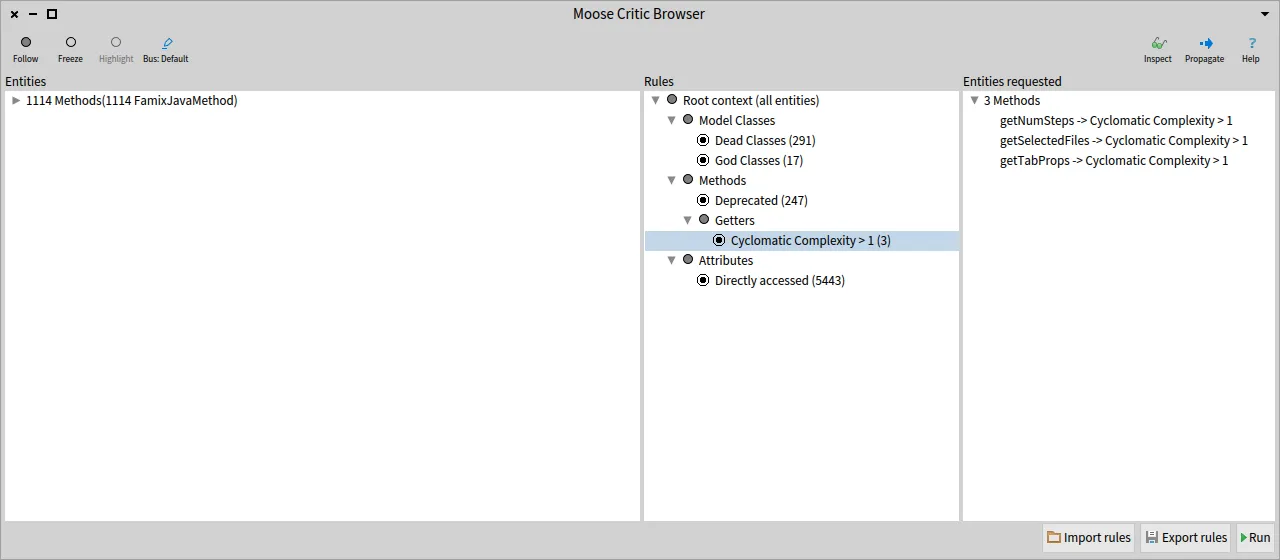
"Title:" 'Attributes'"Context Block:" [ :collection | collection allAttributes ]"Summary:" 'Every attributes in our model or accessed by a model entity.'Once this is all done, we are met with this screen :
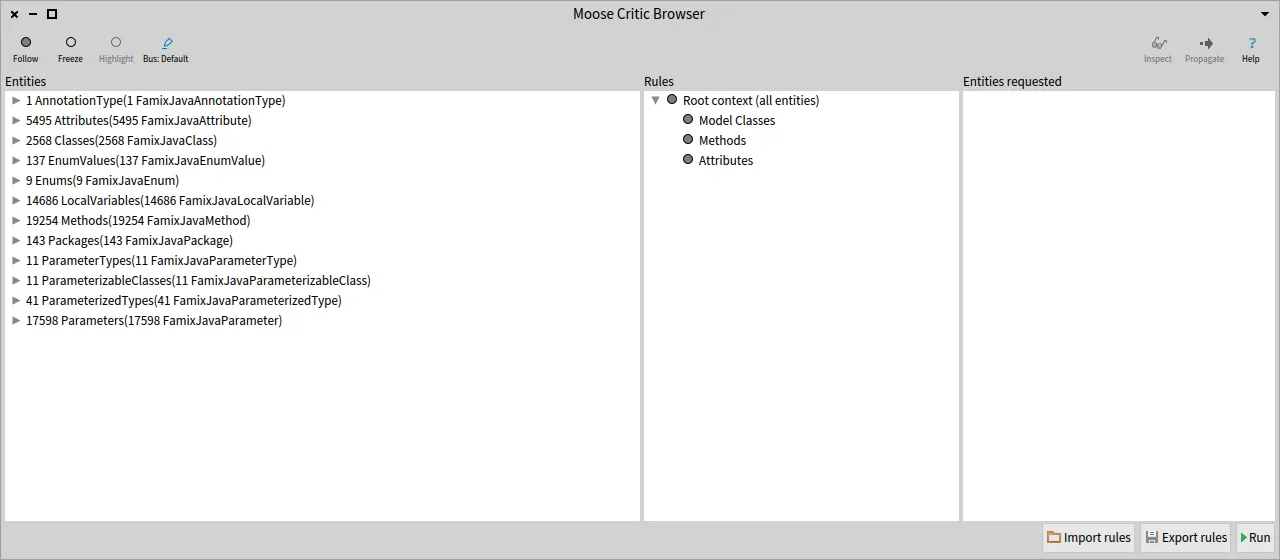
Conditions
Section titled “Conditions”Now that our contexts are set, we can write a few conditions for those.
To do so, right-clicking on our Model Classes context and choosing “Add condition” which will open a new interface to write our conditions.
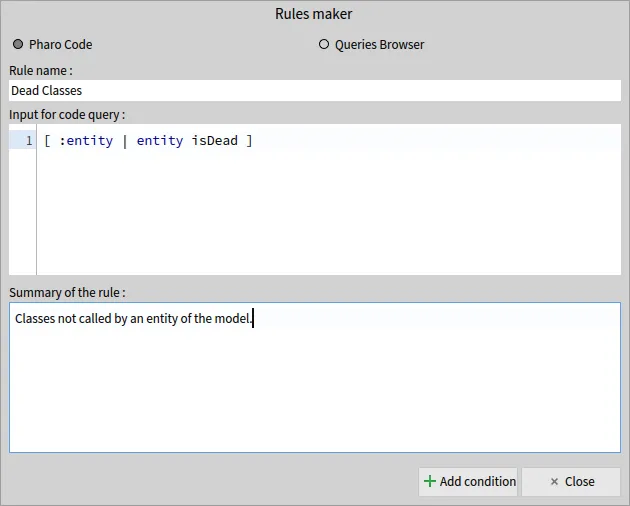
The properties are almost identical to a context, but we now use a query to know whether or not an entity violates a rule.
This query will have as a parameter every entity of our context, one by one, and will add a violation to it if the query returns true.
Now, the most perceptive readers (all of my readers, no doubts 😄) will have noticed the two radio buttons; Pharo Code and Queries Browser.
We can indeed use a query built in the Queries Browser, and we will do so for the next one, to find God Classes.
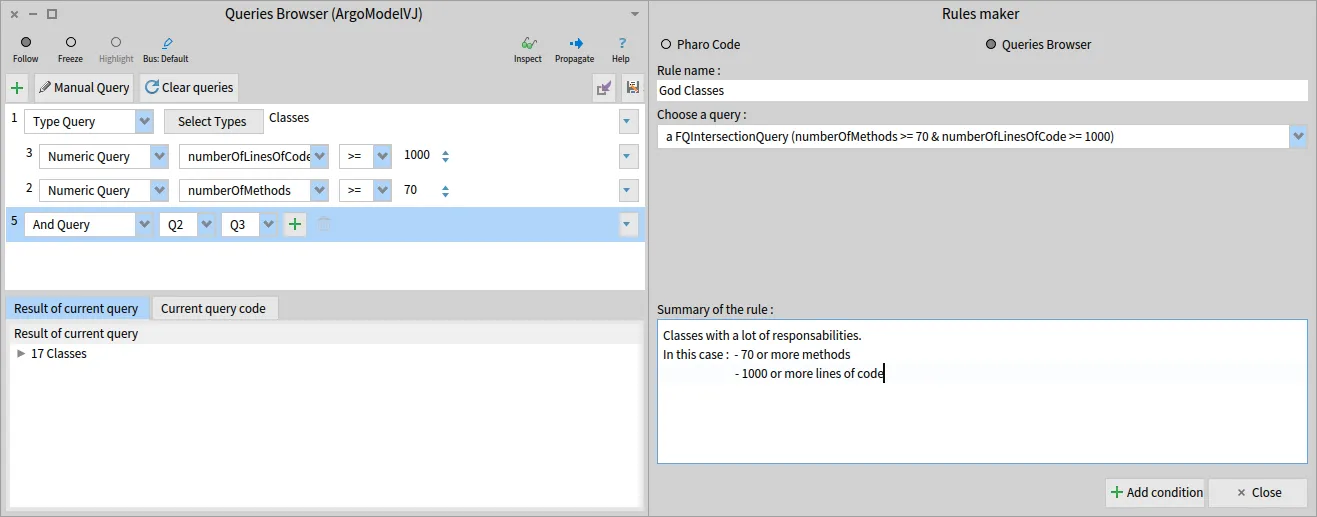
This may not be an option for every kind of rule, especially the more complex ones, but conditions verifying several simple things can be easily designed, thanks to the Queries Browser.
Now that we saw all possibilities, time to write one more condition, this time for the methods :
"Title:" 'Deprecated'"Query Block:" [ :entity | entity annotationInstances notEmpty and: [ entity annotationTypes anySatisfy: [ :a | a name = 'Deprecated' ] ] ]"Summary:" 'Deprecated methods, that should be removed or not used anymore.'We are now all set, and all that remains to do is pressing the “Run” button in the bottom right corner, and look at the result of our analysis in the right pane, showing every violation found, on the format violatingEntity -> violatedCondition.
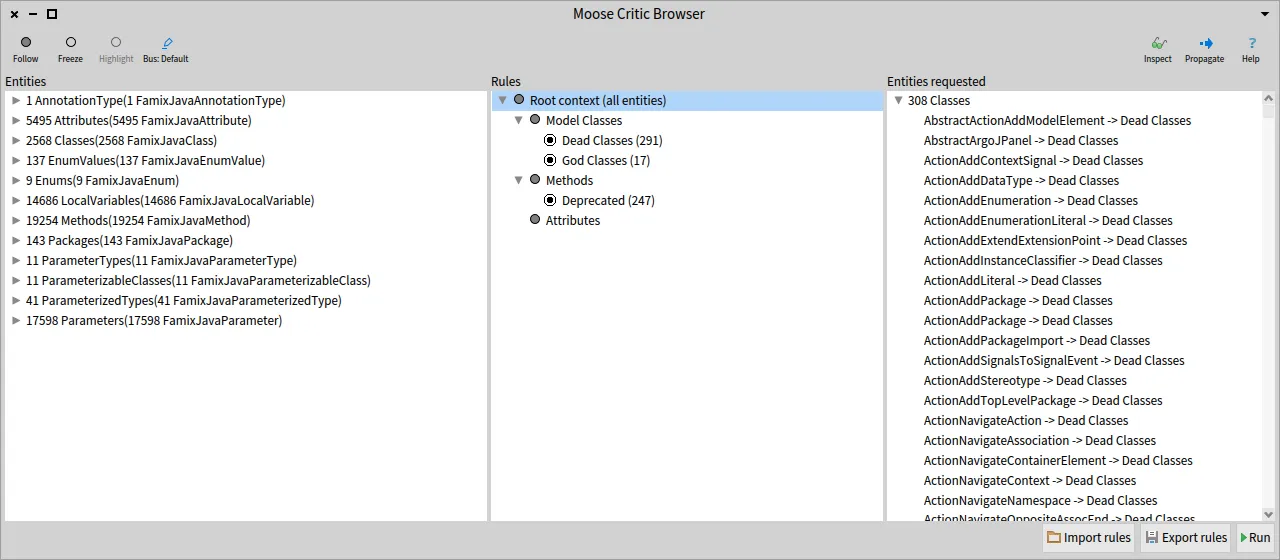
Now that we executed our rules, you can also have fun clicking on contexts and conditions to see that the left and right panels will change to match your selection, the left one showing the context, and the right one showing the violations of the selected condition, or the violations of every condition of the selected context.
Getting specific
Section titled “Getting specific”We may also be a bit more specific, both on the condition side of things, but also when it comes to context.
For the conditions, our perceptive minds did not forget about the attributes, so we will write a condition for them too :
"Title:" 'Directly accessed'"Query Block:" [ :entity | entity accessors anySatisfy: [ :m | m isGetter not and: [ m isSetter not ] ] ]"Summary:" 'Every attribute accessed without the use of a getter or setter method.'For a final rule, let’s work a bit more on our context.
Let’s say we want to build a rule around getter methods, to verify that their cyclomatic complexity is equal to 1.
For that, we can start by making a new context, using the “Methods” context as its parent :
"Title:" 'Getters'"Context Block:" [ :collection | collection select: [ :m | (m name beginsWith: 'get') and: [ m isGetter ] ] ]"Summary:" 'Every getter method of our model, meaning : - Their name starts with 'get' - They have the property 'isGetter' set to true'Once that sub-context has been created, we can give it a condition to verify ! Let’s do so right away, with our cyclomatic complexity example :
"Title:" 'Cyclomatic Complexity > 1'"Query Block:" [ :entity | entity cyclomaticComplexity > 1 ]"Summary:" 'A getter must have a cyclomatic complexity of one.'We are now done with all of our rules. To get the result of our new conditions, you can use again the “Run” button, or, execute only the new ones by right-clicking on them and selecting the “Run condition” option.
Saving and loading the rules
Section titled “Saving and loading the rules”Our work is now done, but we would like to be able to monitor the state of our project in the long run, and to simplify this, we can export and import sets of rules built with MooseCritics.
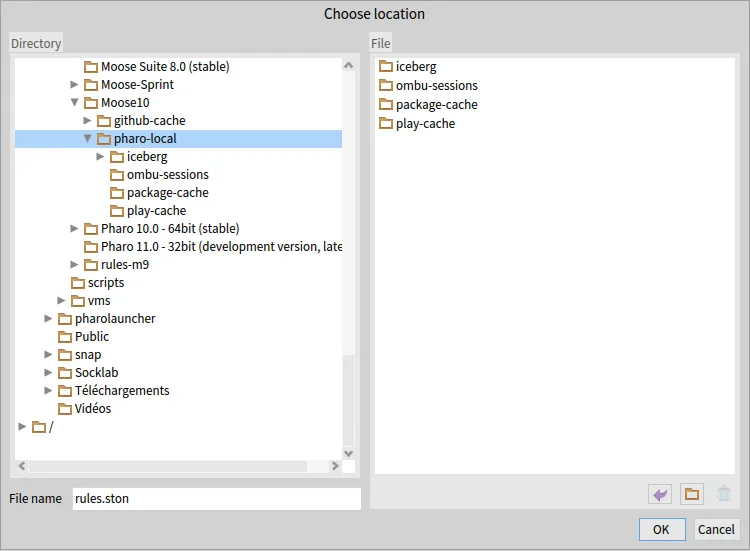
For that, by pressing the “Export rules” button, we can choose where we wish to save our rules. The loading works similarly and will restore the tree as it was when it was saved (if rules were already present, the imported rules are added after those).
Exporting violations
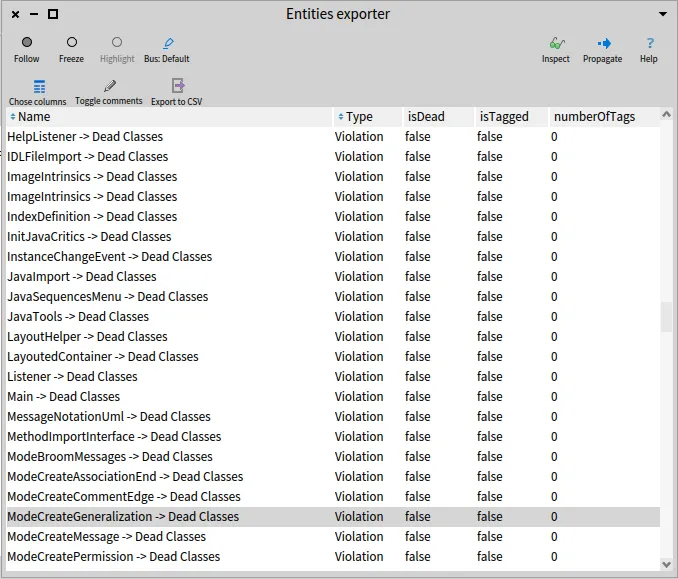
Section titled “Exporting violations”MooseCritics can also propagate those violations, in order to access them in the entities exporter, to be able to save those violations in a CSV file.
The exported selection will be the violations found in the right pane when using the propagate button.
Conclusion
Section titled “Conclusion”MooseCritics enables us to verify the validity of our defined rules and puts us in the right direction to correct our mistakes by finding violations. Dividing our model into contexts allows us to make specific analyses while working on a large scale.
Even if most of the examples shown here are fairly simple, MooseCritics can represent complex structural rules using Famix properties and will surely make your life easier when it comes to software analysis using Moose. 😄